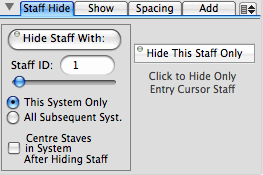
Staff Hide Tab
The Staff Hide tab view is used to hide staves that you don't want displayed in system, and the next tab view (Show) is used to show previously hidden staves. Normally, this panel is used to hide empty staves if you want only the staves with music on them to appear in the score.
Hiding staves is best done after the score has been completed and the number of measures per system has been finalized.
To hide a staff:
Staff Show Tab
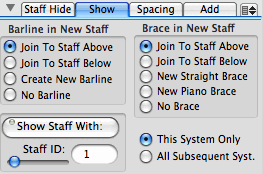
Staves can only be shown if they have previously been hidden. If you need to add a new staff to your score, use the Add Staff tab view in this pane.
To show a hidden staff:
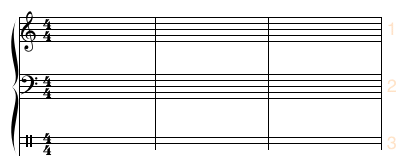
If you are showing a staff that is below all staves in the system, enter a staff number greater than the number of staves in the system. In the example below, the third staff in the system (a percussion staff) was hidden. It is shown again by setting the staff number to 3, and indicating that it should have a new straight brace and a new barline.
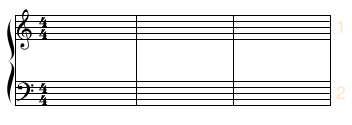
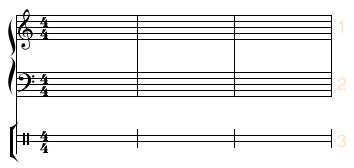
If the settings had indicated that the new staff should have its barline and brace joined with the staff above, it would look like:
|
|
Staff Spacing Tab
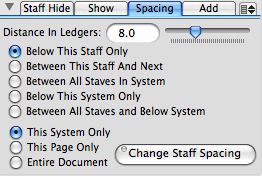
The Staff Spacing tab view is used for changing the vertical distance between staves in the system. Although it is possible to manually adjust the vertical position of staves with the Staff Position buttons, the Staff Spacing pane gives you more control over the spacing and allows changes to be made for all systems on the page or throughout the entire score.
Staff spacing distances are set in the number of ledger lines between the bottom line of one staff and the top line of the staff below. A normal spacing is 7 or 8 ledger lines, with 6 or less being a close spacing and more than 10 being a wide spacing. When changing the spacing between staves, first set the distance (either by typing the value in the text field or using the slider), then set which staves you want affected, and whether you want staff positions adjusted only on the current system (i.e. the one that the Entry Cursor is on), only on the current page, or throughout the entire document. After setting these controls, click on the Change Staff Spacing button.
In the following examples, we begin with a system of 3 staves (with staff spacing set to 4 ledger lines.)
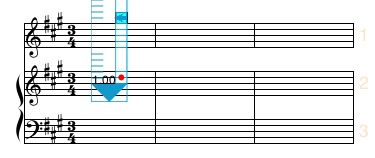
If we place the Entry Cursor on the top staff and set the new staff spacing to 6 ledger lines. The effect of the various options are:
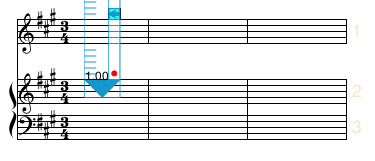
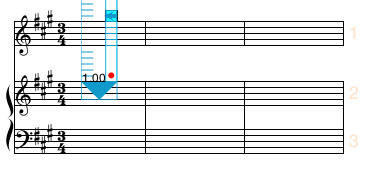
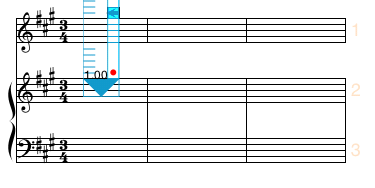
The Below This System Only option creates space between the bottom of the current system and the top of the next system. The Between All Staves and Below System option sets the space between all the staves in the system and between the bottom of the system and the top of the next system.
An alternate method of adjusting staff spacing is to use the Staff Spacing panel which allows all staff spacing distances in the current system to be loaded and edited. This method is particularly useful for systems containing many staves.
|
|
Staff Add Tab
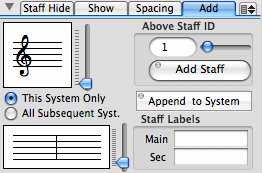
The Staff Add tab view is used to add more staves to your score. The new staff can either be inserted in the middle of a system or appended to the bottom of the system.
You should only add a new staff if you are adding a new instrument to the score, of if an exising instrument requires more staves than it currently has. If you have previously hidden a staff, use the Staff Show tab view in this pane to show the hidden staff rather than adding a new one.
To add a new staff to your score:
|
|
In the example below, a new two line staff (with the main label "Perc" and a percussion clef) was inserted above staff ID 2. Notice that the new staff has an ID of 3 since it was the third staff to be added to the score (despite the fact that it appears above Staff ID 2.)
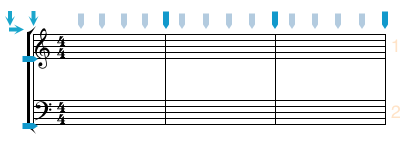
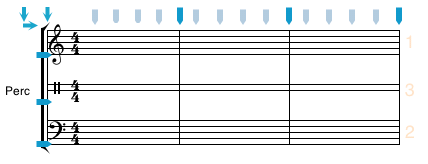
The font for the staff label is specified in the Preferences panel.
When a new staff is added it is possible to specify whether it will have a new brace or is joined to the brace group above or below, and likewise whether it will have a separate barline or whether the barline is joined to the staff above or below. These specifications must be set in the Staff Show tab view before the new staff is added. The relevant portions of the Staff Show tab view are shown below:

|
|
Menu items
The pull down menu located at the top-right corner of this pane contains a menu item for showing or hiding the staff spacing panel.
| Staff Spacing Panel.. | Show the Staff Spacing panel with more comprehensive staff spacing options |
See also


© Keith A. Hamel 1998-2005 - All Rights Reserved |
 - If you change the number of measures in the system after you have hidden
staves, there is a possibility that a measure with music on it will be shifted to a system that has that staff hidden. Although the hidden music is not lost, extra care should be taken when changing the measure layout of the score after staves have been hidden.
- If you change the number of measures in the system after you have hidden
staves, there is a possibility that a measure with music on it will be shifted to a system that has that staff hidden. Although the hidden music is not lost, extra care should be taken when changing the measure layout of the score after staves have been hidden.