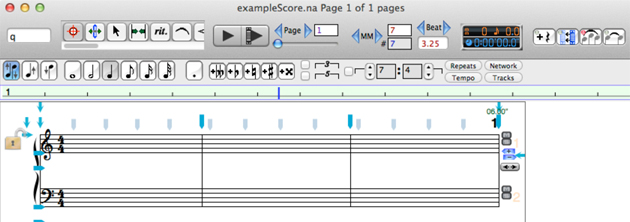
The NoteAbility tools and some of the most commonly used score controls are located at the top and bottom of the score window.
Above the score there are two sets of controls. The upper row of controls is the Score Toolbar and contains many of the tools and buttons that are essential to operate the program. The lower row of controls is context sensitive and alters depending on the current activity of the user.
The controls in the Score Toolbar at the top of the score window consist of the Current Command display (which indicates which image will be added), the NoteAbility Tool Palette (the 20 different tools that are used for entering various kinds of images, for selecting images and for text editing), playback controls, page controls (for shifting from one page to another), controls for moving the Entry Cursor to different measure, and beat locations, and buttons for some common editing actions.

Current Command
On the left side of the Score Controls is the Current Command. This text field displays the sequence of characters that indicates which NoteAbility image will be added next. Except when you are using one of the text tools or entering text in a panel, all typing done while the score is active will appear in the Current Command field.

Since NoteAbility automatically directs your typing into this field, it is not necessary to click the cursor in this text box before typing. Also, after an image has been added to the score, new typing will automatically replace the existing command with the new characters. This means that if you are continuing to enter the same image, you don't need to type anything, and if you want to enter a new image, you can simply type the new command without deleting the previous one. For a complete list of the NoteAbility commands for various music symbols refer to the NoteAbility Command List
|
|
The palette of NoteAbility Tools control the various functions that you can perform with the program. When one of these tools is choosen, the button is highlighted and the cursor is modified to reflect the activity selected. The tools are contained within a scrolling window with the most common tools normally visible.

Currently in NoteAbility there are 27 different tools available - they are:

|
|
Playback Controls

For convenience, Playback controls are included at the top of the score - they also appear in the Playback Controls pane of the Music Images Panel. The first of these two buttons causes the score to play from the beginning, while the second button causes the score to play from the measure that the Entry Cursor is currently in. While playing, the button you clicked changes to a Stop icon -- clicking the button during playback stops the performance.

Whatever tempo, tempo map, playback map has been set for the score will be used during playback. While playing, a view appears below these controls with miniature buttons which can be used to stop or pause playback or alter the tempo.
Page Controls

The Page Controls allow you to move to a different score page. The left and right arrows shift to the previous or next page, while the scroll bar allows you to jump quickly to another page. You can also change pages by entering the page number in the Page text box and typing Return. There are also menu items in the Format menu (and the shortcuts Command-< and Command->) which move you to the previous or next page.
Measure and Beat Controls
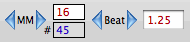
The Measure and Beat Controls show the current position of the Entry Cursor and allow you to move the Entry Cursor to different measure and beat locations in the score. The left and right arrows shift to the previous or next measure or beat. You can also move the Entry Cursor to a specific measure or beat position by entering a number in the Measure or Beat text boxes and typing return. If the measure is on a different page, the score will jump to that page. The second measure text box shows the measure number of the specified measure (since measure numbers may not conform to the actual number of measures in the score. In the example above, the Entry Cursor is on beat 1.25 of the 16th measure of the score which is measure number 45 (since the first measure of this particular score is 29.)
While these controls can be used to move the Entry Cursor around the score, it is usually faster to move around the document using the Space-bar or Shift-Space bar which move the Entry Cursor to the next or previous beat position or to drag the Entry Cursor by grabbing the rectangle along the right side of the Cursor.
|
|
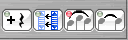
Editing Shortcuts
|
|
Customizing the Score Toolbar
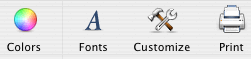
The Score Toolbar can be customized by either choosing the Customize Toolbar... item in the Windows menu or by Control-clicking the toolbar. A number of buttons such as a page setup button, a print button, a color panel button, can all added to on the Score Toolbar. As well existing tools can be removed. Since the NoteAbility Tools and the Current Command are not available elsewhere in the application, you should not remove these items from the toolbar.
Some of the additional toolbar items are shown below:
Context Dependent Controls
Below the Score Toolbar there is another row of controls which alternates between 3 sets of controls depending on whether you are entering notes, editing the score, or playing the score.
When you are entering images in the score, the following controls are available:

Current Voice

Normally in NoteAbility there are three voices permitted per staff. When notes (or chords) are entered in one of these voices, their default stem direction is set to be:
To switch voices in the score, click on one of the three Voice radio buttons. All images entered with the mouse, the on-screen keyboard, or using a MIDI keyboard will belong to the voice set with these controls.
It is possible to flip the stem direction of notes regardless of which voice the notes belong to. However, these notes and chords will revert back to their default direction when the images are adjusted.
|
|
Note Palette

Some of the common note values are available in the Note Palette. Clicking on one these buttons loads the appropriate character into the Current Command. For example if you click on the eight note button followed but the dot button, the Current Command will be "e." while if you click on the sixteenth note button, the Current Command will be "s". Note also that if you type a command (such as "w" the appropriate button (in this case the whole note button) will be highlighted.
Accidental Palette
The accidental palette allows accidentals to be applied to the last entered note (or any collection of notes selected with either the Selection or Select Score tools). These buttons are shortcuts to the Modify / Accidentals menu items.
Tuplet Controls

To engage triplets, quintuplets or any arbitrary tuplet grouping, click on these radio buttons.
When any tuplet grouping is engaged, the Entry Cursor is altered so that the tuplet value is indicated in the Entry Cursor.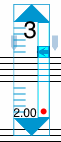
This helps to remind you to turn off the tuplet setting after you have finished entering it. (Command-e can also be used to clear the tuplet setting.)
|
|
An Insert Rest button and a Tie Notes button are also include in this collection of controls.
Score Panels

There are four small buttons which bring up drawers on the left side of the score. These panels are used for the following purposes:
When editing the score (i.e. the Selection or Select Score tool has been choosen), the following controls are available:

These popup menus are duplicates of the menus found in the Modify menu, but are positioned here for ease of access. As well, a Slur Notes button and a Beam Notes button are positioned beside the pull-down menus. For information on these menus, refer to the Modify Menu.
When you are playing back a score, the following controls are available:

There are miniature buttons for stopping or pausing playback, a tempo slider and tempo display for adjusting tempo during playback and counters which display both elapsed time and the measure and beat currently playing.
Playback counters can also be added to the main Score Control area using the Customize Toolbar... menu mentioned above. These counters will retain the score playback duration and ending playback position after the score has finished playing.
At the bottom of the score there are buttons and controls for the following actions:
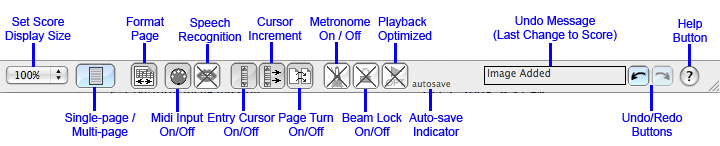
When enabled, the playback metronome will play a note on each beat of the score using the instrument set on the DLS channel 1. The first beat of each measure is accented.
See also


© Keith A. Hamel 1998-2005 - All Rights Reserved |
 - You may also use the Note Palette or the


