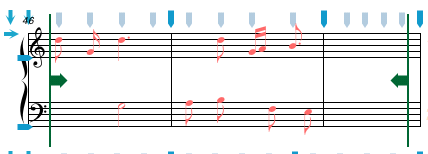
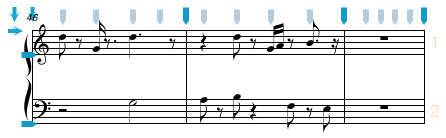
The Modify/Rest menu lists commands creating and removing rests.
| Insert Single Rest | ⌘R | To insert a rests equivalent in duration to the current note value |
| Remove Selected Rests | To remove all rests from the selected area of the score | |
| Insert Rests In Selection | ⌥⌘R | To insert rests wherever there are unfilled beats in the current selection (using the Select Score tool) |
| Build Measure Rests | ⌥⇧⌘R | To group measures in the current selection (using the Select Score tool) into Multiple Measure Rests |
| Expand Measure Rests | To revert a multiple measure rest into a series of measures. | |
| Hide/Show Rests | To hide or show selected rests. |
The Insert Rests menu item fills all empty beats in a selected section of the score with rest of the correct value. To use this command, select portion of the score with the Select Score tool, then select the Insert Rests menu item.
|
|
The Measure Rests menu item groups selected measures into multiple measure rests. Any unnecessary barlines are removed and the multiple measure rest image is inserted. To use this command, select portion of the score with the Select Score tool, then select the Measure Rests menu item.
When multiple measure rests are created only the barline markers are retained -- all beat markers in the rhythmic spine are removed.


|
|
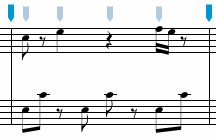
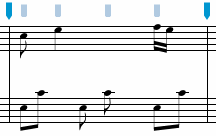
The Expand Measure Rests menu item reverts multiple measure rest into a series of blank measures. In order to use the command, you must either select the multiple measure rest object on the score or place the Entry cursor in the first measure of the multiple measure rest. If you want to expand several multiple measure rests at the same time, use the selection method. In the example below, the entire line of music was selected and the Expand Measure Rests menu item was used to revert the multiple measure rests to a series of blank measures.


|
|
The Remove Selected Rests menu item provides a short cut for removing only the rests in a selected area of the score, leaving all other images intact. Either the Selection or Select Score tools can be used to create the selection.
See also


© Keith A. Hamel 1998-2005 - All Rights Reserved |
 - The Insert Rests command will not work unless the Select Score tool has been used to select an area of the score.