|
Tempo Map The Track Setup panel is shown by selecting Tempo Map from the Operations Menu. 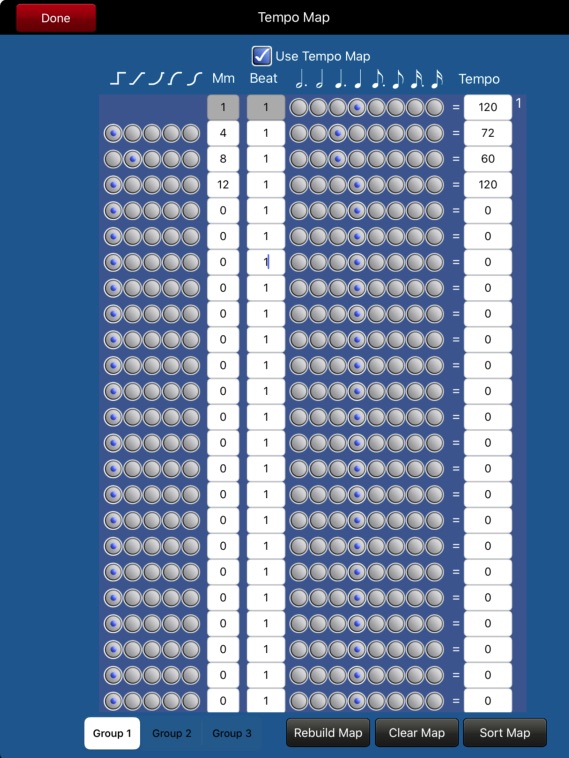 The Tempo Map menu brings up a full screen panel which allows you to set the playback tempo of your score. If you have entered Tempo Text in your score, these values will already have been added to the Tempo Map. You can add more tempo changes new tempo by selecting the transition method (a discrete or gradual tempo change), the score position (measure and beat) that the tempo change takes place, the note value and the metronome value. In order for these tempo changes to be used in playback, you must check the Use Tempo Map checkbox at the top of the panel. The right side of the panel allows you to set the note value for the tempo change and the tempo value: 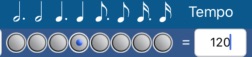 The above setting indicate a tempo of quarter note = 120. The buttons on the left side of the panel indicate the transition to the next tempo: 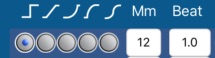
When you select any of the ramps to a new tempo, the ramp is started at the measure and beat location of the previous tempo change. 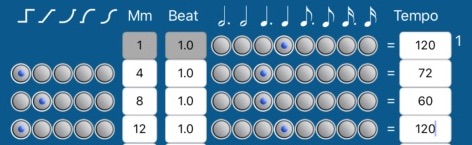 The example above shows:
The Rebuild Map button can be used to build a tempo map based on all the Tempo Text that have been entered in score. The Clear Map button can be used to clear all settings from the Tempo Map. The Sort Map button can be used to sort the tempo changes so they appear in score order by measure number and beat.
Touch the Done button to dismiss this panel and save the changes. | |
|
See also | |
|
© Keith A. Hamel 2013-2020 - All Rights Reserved | |