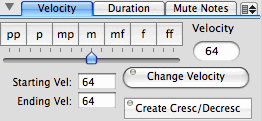
Velocity Tab
The Velocity tab contains controls for setting the velocity (or volume) of selected notes.
The velocity slider, text field and dynamic level buttons all set the current velocity (i.e. volume) - which is displayed in the Velocity text field. When notes are entered, this velocity value is stored for playback. This means that you can alter the velocity while you are entering notes by setting the velocity value before a new note is added. You can also alter the velocity of selected notes by setting a new velocity value and clicking on the Change Velocity button.
If you want to create a smooth crescendo or decrescendo, select a group of notes (probably using the Select Score tool), set the Starting Velocity and Ending Velocity values and click on the Create Cresc/Decresc button.
|
|
Duration Tab
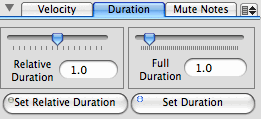
The Duration tab allows you alter the playback duration of selected notes without changing the appearance of the notes.
The Relative Duration slider and text field allow you to set the playback duration relative to the actual written duration. When the relative duration is 1.0 the two are the same. When the relative duration is less that 1, the playback duration will be shorter than the written duration (creating a more staccato playback.) When the relative duration is greater than 1, the playback duration will be longer than written duration and a legato effect is created. Currently, when certain articulations are added to notes, the relative duration is modified. To set your own relative duration values for notes, select the notes, set the relative duration and click on the Set Relative Duration button.
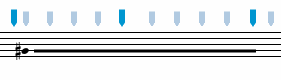
The Full Duration slider and text field allow you to set the playback duration to any number of beats you want. This is useful in some contemporary scores where you want a note to play much longer than the duration of the note value. In the example below, the duration of the note was set to 8.0 beats so that it plays for the duration that the line indicates.
Mute Notes Tab
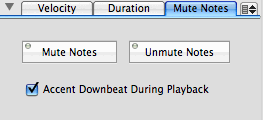
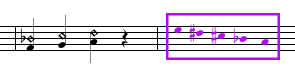
The two buttons on this tab view allow selected notes to be muted or unmuted (if they were previously muted). The Mute Note button is designed for use on any notes that you would rather did not sound when the score is played. In the example below, the harmonic notes were muted so that they do not sound during playback, and the notes in the rectangle were muted since they are not part of the performance score.
The Accent Downbeat During Playback is a setting which causes a slight accent to be played on the first beat of each measure.
Menus Items
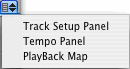
The pull-down menu located at the top-right corner of the Performance Settings pane contains the following items:
| Track Setup Panel | display the Track Setup panel so that the sound output controls for each track (staff) can be set. |
| Tempo Map Panel | display the Tempo Map panel so that a series of tempo changes can be specified. |
| Playback Map Panel | display the Playback Map panel so that repetitions of certain portions of the score can be set. |
See also


© Keith A. Hamel 1998-2005 - All Rights Reserved |
 - Playback settings affect MIDI, DLS, Audio Unit, and Quicktime playback. Imported audio files are
not affected by these settings.
- Playback settings affect MIDI, DLS, Audio Unit, and Quicktime playback. Imported audio files are
not affected by these settings.