Page
Setup
Choose Page Setup... from the File menu. The Macintosh OS-X page setup panel will appear:
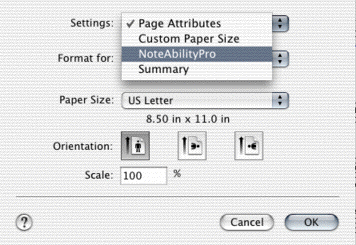
There are several items under the Settings: pull-down menu that you should be familiar with.
Each item displays a different pane in the Page Setup panel:
- Page Attributes allows you to choose paper size and orientation,
- Custom Paper Sizes allows you to add customized paper sizes to those
currently supported by your printer, (only on Mac OS 10.2 and later)
- NoteAbilityPro allows you to set margins and reduction/enlargement
percentages, and to view the music layout on the paper,
- Summary displays all the current page setup information.
Some changes were made to the way Page Setup is handled in Mac OS 10.2, so if you
are using Mac OS-10.2 or later use the following procedure for performing page setup:
Page Setup Procedure using Mac OS-10.2 or Later
- Select the paper size from the pull-down menu of available paper sizes. The
paper sizes are taken from printer the document is formatted for and from any
custom paper sizes that you have added under the Custom Paper Size menu
item near the top of the panel next to Settings:.
- Select the orientation you want your document printed in (Portrait or Landscape)
using the buttons at the bottom of the panel.
- Click on the OK button to store these settings.
- If you want to change the print reduction/enlargement percentage or the
position of the music on the paper, then choose the Page Setup... menu
item again and this time select the NoteAbilityPro item from the
Settings: pull-down menu located near the top of this panel. A customized
page setup panel will appear:
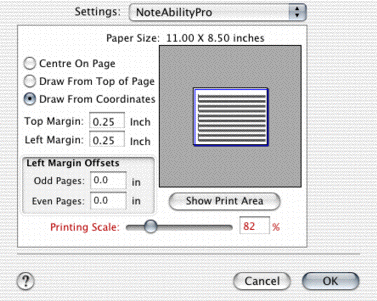
- Set the position of the music on the page with the radio buttons and margin
settings. You can choose to have your music centred on the paper, positioned at
from the top-right corner of the paper, or with right and top margins specified
in some measurement units (eg. inches, centimeters).
- Use the slider to adjust the percentage reduction/enlargement of your print job.
- If desired, you can also set left margin offsets for odd and even pages.
- Once you have finished setting up your page, click OK.
If you are using Mac OS 10.1.5 or earlier, use the following procedure for
setting up your page:
Page Setup Procedure using Mac OS-10.1.5 or Earlier
- With the Page Setup panel visible, choose NoteAbilityPro from the
Settings pull-down menu located near the top of the Print panel.
A customized page setup panel will appear:
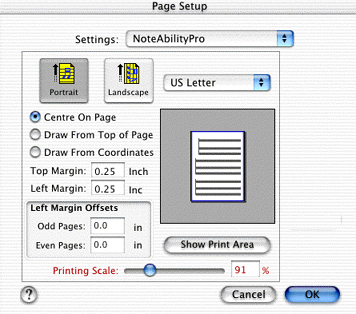
- Choose a paper size from the Paper Size pull-down menu.
- Click either the Portrait or Landscape button to set the
page orientation.
- Set the position of the music on the page with the radio buttons and
margin settings. You can choose to have your music centred on the paper,
positioned at from the top-right corner of the paper, or with right and top
margins specified in some measurement units (eg. inches, centimeters).
- If desired, you can also set left margin offsets for odd and even pages.
- Use the slider to adjust the percentage reduction/enlargement of your print
job.
- If desired, you can also set left margin offsets for odd and even
pages.
- Once you have finished setting up your page, click OK.
job.
NoteAbility extends the standard Page Setup panel with extra controls which provide
additional format settings and which displays the first page of your score showing the
positions of the staff lines. When you change most of the settings on the Page Setup
panel, the page display will be altered to show you where your music will appear on the
paper. To update the display, you can click on the Show Page button.
After setting the Scale to 75% and selecting Draw from Coordinates Top Margin: 1.5
inches and Left Margin: 0.25 inches, and clicking on the Show Print Area button, the
page display will now appear as:
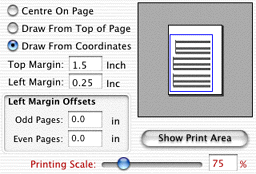
This page display gives you a accurate representation of what will appear when the
document is printed.
When you are finished setting all the characteristics of your page, click OK.
All of the page layout settings are saved with your document, so they will be remembered
when you open the document again.
|
 - When you reduce or enlarge printed pages by changing
the percentage in the Scale field the actual contents of the document doesn't change - only the size of the printed images is altered. - When you reduce or enlarge printed pages by changing
the percentage in the Scale field the actual contents of the document doesn't change - only the size of the printed images is altered.
|
See also
|
|


© Keith A. Hamel 1998-2005 - All Rights Reserved
|
|