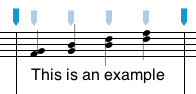
NoteAbility text is entered by selecting either the Measure Text or the Page tool (depending on whether the text should adjust with the music [Measure Text] or remain fixed on the page [Page Text]), then clicking the cursor on the score, and typing on the keyboard. The entered text can be edited (using the same tool) by selecting portions o f the text and re-typing or pasting text from another source. All characteristics of the text (fonts, size, justification, leading, kerning, etc.) can be set either by selecting portions of the text and using the Font Panel (command-t) or by using the functions available in the NoteAbility Font and Font/Text menus.
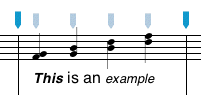
Page Text remains at a fixed location on the page while Measure Text is associated to a staff and to a beat position in the measure. Information such as crescendo, decrescendo, tempo changes, and most other text comments (pizz., arco., etc.) should be entered as Measure Text since you normally want the text to be adjusted as the staff and beats are adjusted. Page Text is normally used for titles, authors names, copyright notices, and other text that should remain fixed on the page.
Although text boxes have two Control Points (one at the bottom-left, and the second at the top-right), the entire text can be moved by using the Selection tool, clicking anywhere on the text and dragging the mouse.
|
|
To change the colour of text, highlight the text you want to alter (using the Measure Text or Page Text tool), and drag a colour from the Color well on the Color Panel, (or from any other visible color well) onto the highlighted text.
To insert graphics (eg. TIFF files, PDF files, Quicktime Movies, etc.) into your text, select the Measure Text or Page Text tool, and click the cursor in the text box at the location you want the graphic image to appear. Locate the icon for the graphic image in the finder, and drag it to the text box.Each text element in NoteAbility has its own text ruler which can be shown by clicking the mouse in the text box and choosing the Show Ruler item from the Format menu. The ruler can be used to change leading, tabs, and justification of the text.
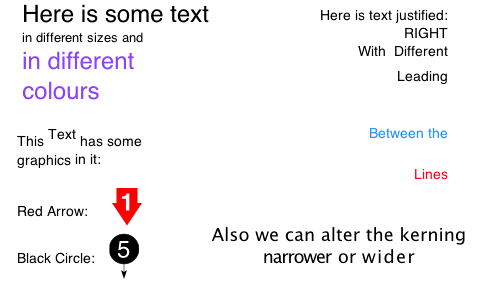
The example below shows text in different fonts, sizes, justifications, as well as superscript, different leading, and inserted graphics.
|
|
See also


© Keith A. Hamel 1998-2005 - All Rights Reserved |
 - Once you have entered text of one type or another (i.e. Measure or Page Text), you can use either of the text tools to edit the text without changing the text type. (In other words, Page Text always remains Page Text even though you may use the Measure Text tool to edit it.)