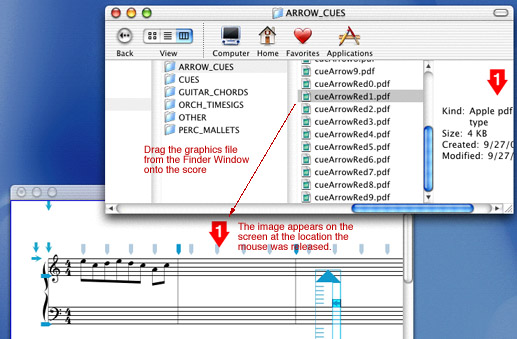
|
|
Pasting Graphics into NoteAbility
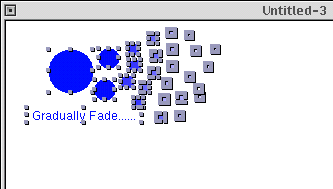
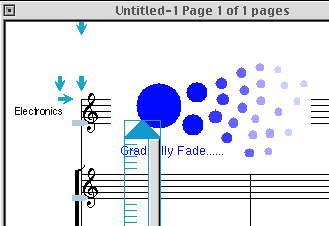
You may use copy and paste commands to add graphics images to a NoteAbility file. To do this, copy the image from any graphics application that supports either PDF, TIFF, PICT or JPG images. Once your have copied the graphic image, return to NoteAbility, and use the Paste command from the Edit menu. A copy of the image will be located at the Entry Cursor. Once it is pasted, it can be adjusted to the correct position by selecting the bottom-left corner of the image and dragging it. The size of the image can be altered by dragging the top-right corner of the image.
In the example below some graphics were copied from the Sketch.app and pasted into NoteAbility (any standard graphics program - Adobe Illustrator, Photoshop, etc. could be used instead of Sketch.app):
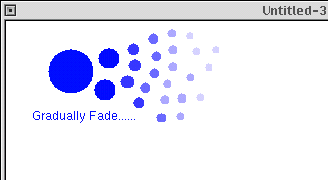
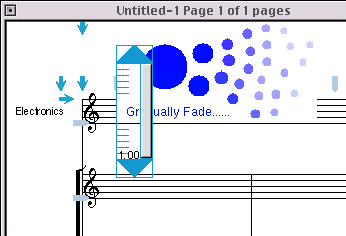
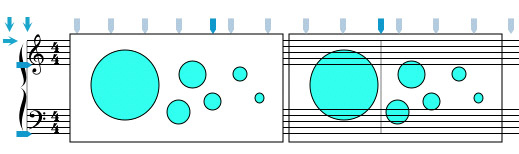
If you want the graphic image to appear behind the staves and music, select the bottom-left corner of the graphic image and click on the Send to Back button on the Graphics pane of the NoteAbility Inspector. In the example below, the first graphic is in the foreground, and the second copy of the graphic is in the background.
Collections of PDF and EPS images can be also be stored in the Image Library Panel and inserted from this panel into the score. Refer to the Image Library Panel for details on how to load and save image libraries.
See also


© Keith A. Hamel 1998-2005 - All Rights Reserved |
 - The image you add may be in PDF, EPS, TIFF, JPG, GIF or PICT file format. For more information about graphics formats on your computer, see your computer's Help pages.