|
Using keyboard shortcuts on a connected or typewriter keyboard can dramatically increase the speed of note entry and editing in NAPro. A large number of keyboard
shortcuts have been added to the program and these can be reviewed by holding down the Command key on the keyboard. The keyboard shortcuts are listed below:
The following keys are used with keyboard shortcuts:
- ⌘ - Command Key
- ⇧ - Shift Key
- ⌃ - Control Key
- ⌥ - Option Key
- ↑ - Up Arrow (Cursor)
- ↓ - Down Arrow (Cursor)
- ← - Left Arrow (Cursor)
- → - Right Arrow (Cursor)
- ⌫ - Delete/Backspace
- ␢ - Space bar
- ⎋ - Escape key
File and Panel Shortcuts
| Key | | Command | Description |
| ⌘ N | | New Score | - brings up the New Score panel |
| ⇧⌘ N | | New Custom Score | - brings up the Custom Score panel |
| ⌘ O | | Open | - open a new score |
| ⌘ S | | Save | - save the score using its current file name |
| ⇧⌘ S | | Save As | - save the score with a new file |
| ⌘ P | | Print Setup | - displays the print setup panel |
| ⇧⌘ P | | Print | - prints the current score |
| ⌘ K | | Keyboard | - displays/hides the on-screen Keyboard |
| ⇧⌘ X | | Extract Parts | - displays the part extraction panel |
| ⌘ M | | Midi Recorder | - displays the Midi Recorder panel |
| ⌃ P | | Preferences | - displays the Preference panel |
Editing Shortcuts
| Key | | Command | Description |
| ⎋ | | Mode Switch | - Switch between Insert and Edit modes |
| ⌘ Z | | Undo | - undo the last change to the score |
| ⇧⌘ Z | | Redo | - redo the last undo in the score |
| ⌫ | | Delete | - deletes notes or last image entered |
| ⌘ X | | Cut | - cut selected notes or last image entered |
| ⌘ C | | Copy | - copy selected notes or last image entered |
| ⌘ V | | Paste | - paste copied/cut images into score |
| ⇧⌘ V | | Replicate | - exact paste copied/cut images into score |
| ↑ | | Shift Up | - moves selected images up one staff space |
| ↓ | | Shift Down | - moves selected images down one staff space |
| ← | | Shift Left | - moves selected images to the left |
| → | | Shift Right | - moves selected images to the right |
Modifying Images Shortcuts
| Key | | Command | Description |
| 1 | | Slur Notes | - slur selected notes or last note entered |
| 2 | | Add Articulation | - add last articulation to selected notes |
| 3 | | Semitone Above | - adjust notes with accidental 1 semitone higher |
| 4 | | Semitone Below | - adjust notes with accidental 1 semitone lower |
| ⌘ R | | Insert Rest | - insert rest using current note value |
| ⌘ B | | Beam Notes | - beam selected notes |
| ⌘ 2 | | Double Sharp | - add double sharp to selected notes |
| ⌘ 3 | | Sharp | - add sharp to selected notes |
| ⌘ 4 | | Natural | - add natural to selected notes |
| ⌘ 5 | | Flat | - add flat to selected notes |
| ⌘ 6 | | Double Flat | - add double flat to selected notes |
Working in the Score
| Key | | Command | Description |
| ␢ | | Play | - plays (or stops) the entire score |
| ⇧␢ | | Play From | - plays (or stops) the score starting from EC |
| g | | Step Back | - moves Entry Cursor back to previous note |
| ⇧← | | Shift EC Left | - moves Entry Cursor to the left |
| ⇧→ | | Shift EC Right | - moves Entry Cursor to the right |
| ⇧↑ | | Shift EC Up | - moves Entry Cursor to the staff above |
| ⇧↓ | | Shift EC Down | - moves Entry Cursor to the staff below |
| ⌘← | | Previous Page | - move to previous score page |
| ⌘→ | | Next Page | - move to next score page |
| ⌘, | | Add Staccato | - add staccato to selected notes |
| ⇧⌘. | | Add Accent | - add accent to selected notes |
| ⌘/ | | Add Tenuto | - add tenuto to selected notes |
| ⌘' | | Add Staccatissimo | - add spike accent to selected notes |
| ⌘ | | Add Marcato | - add marcato accent to selected notes |
Entering Images
| Key | | Command | Description |
| n | | Enter Notes | - switch to insert notes mode |
| r | | Enter Rests | - switch to insert rests mode |
| l | | Engage Link | - engage the note or rest link button |
| d | | Double Whole | - selects double whole note or rest |
| w | | Whole Note/Rest | - selects whole note or rest |
| h | | Half Note/Rest | - selects half note or rest |
| q | | Quarter Note/Rest | - selects quarter note or rest |
| e | | Eighth Note/Rest | - selects eighth note or rest |
| s | | 16th Note/Rest | - selects sixteenth note or rest |
| t | | 32nd Note/Rest | - selects thirty-second note or rest |
| t | | 64th Note/Rest | - selects sixty-fourth note or rest |
| , | | Add Dot | - engage dot button (notes and rests) |
| [ | | Add Triplet | - engage triplet button |
| ] | | Add Quintuplet | - engage quintuplet button |
| f | | Enter Dynamics | - switch to dynamics mode |
| z | | Enter Text | - switch to text mode |
| a | | Enter Graphics | - switch to graphics mode |
When entering notes or rests, you can use the keyboard shortcuts to create a sequence of tied notes or a series of rests. For example, if you type the following:"nhle":
- "n" - switches you to enter note mode if you are not already in it
- "h" - selects the half note button
- "l" - engages the note link button
- "e" - selects the eighth note button
then touch the screen or the on-screen keyboard - the following notes will be entered into the score:
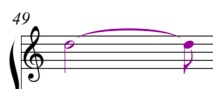
Then type the following keyboard command" "relq":
- "r" - switches you to enter rest mode
- "e" - selects the eighth rest button
- "l" - engages the rest link button
- "q" - selects the quarter rest button
then touch the screen - the following rests will be entered into the score:
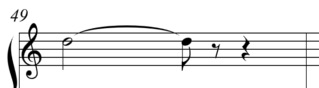
|